We live in an AI-powered world where creating images no longer requires advanced design skills. An AI image generator can turn a text prompt into an image in seconds. This makes it easier to create visuals for blogs, social media, marketing campaigns, and personal projects.
Picking an AI image generator is hard when every tool promises the same thing. We tested 10 of them with the same five prompts. This blog shows what each one produced, what the free plan allows, and whether you can use the results for business.
Quick picks
- Best overall: ChatGPT. Easy to use, strong text in images, and it takes feedback well.
- Best free: Leonardo AI for daily volume, or Stable Diffusion if you have a decent GPU and don’t mind setup.
- Best for commercial use: Adobe Firefly. Its own models were trained on licensed and public-domain content.
- Best for editing: Google Gemini for conversational edits, Adobe Firefly if you already work in Photoshop.
Other roundups tend to name one winner. Different jobs need different tools, so we give four picks up front and the reasoning below.
Best AI Image Generators at a Glance
| Tool | Best for | Free plan | Starting price | Max resolution | Commercial use | Sign-up needed |
| Canva | Design and social posts | Limited monthly uses | Canva Pro | Varies | Check Canva’s terms | Yes |
| Adobe Firefly | Commercial-safe work, Photoshop | Limited daily generations | From $9.99/mo | Varies by model | Own models: yes. Partner models: differ | Yes |
| Fotor | Quick edits and simple graphics | Limited | Paid tiers | Varies | Check plan | Yes |
| ChatGPT | Ease of use, text in images | Limited | $8/mo (Go), $20/mo (Plus) | Varies | Per OpenAI terms | Yes |
| Midjourney | Artistic images | No regular free tier | From $10/mo | Varies | Paid plans: yes | Yes |
| Google Gemini | Editing existing images | Limited, account-based | $4.99/mo (AI Plus) | Varies | Check Google terms | Yes |
| Bing Image Creator | Free, no-fuss images | Free with limits on fast mode | Free | 1024×1024 | Personal use by default | Yes (Microsoft account) |
| Leonardo AI | Style exploration, daily volume | About 150 tokens/day | Paid tiers | Varies | Free outputs: non-exclusive license | Yes |
| Craiyon | Quick throwaway images | Free with ads and queue | Paid tier | Low | Check terms | No |
| Stable Diffusion | Full control, local use | Free (your hardware) | Free | Depends on setup | Depends on the model license | No |
What Is an AI Image Generator?
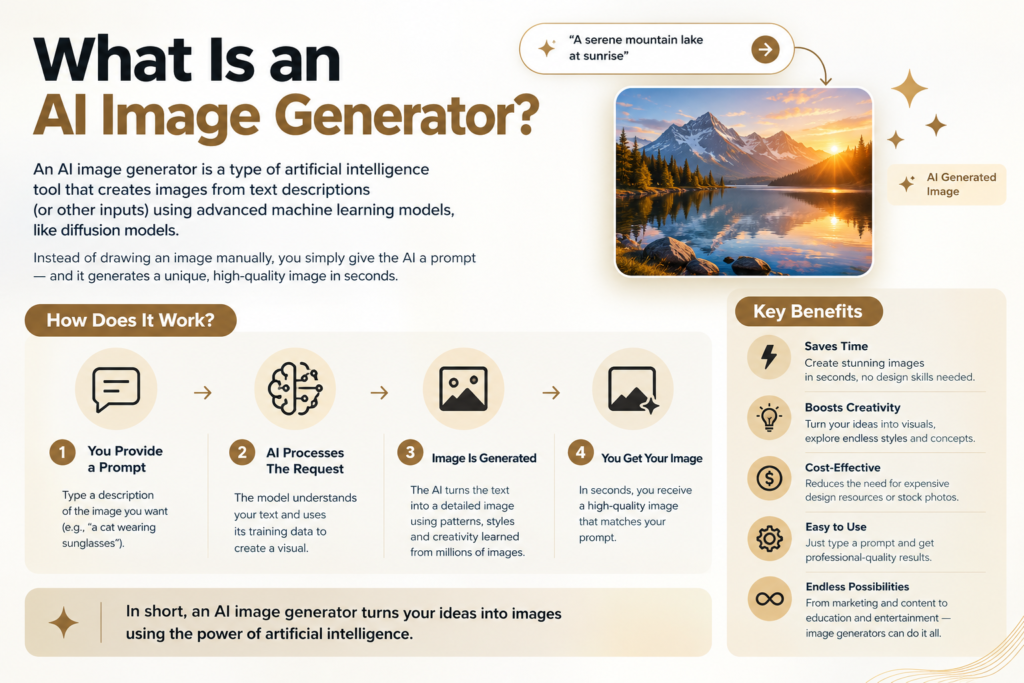
An AI image generator is software that turns a written description into a picture. You type a prompt, such as “a red running shoe on a white plinth, soft studio light,” and the tool creates an image to match. Most also edit existing images, change styles, and extend backgrounds.
People use them for blog thumbnails, social posts, product mockups, concept art, and mood boards. The better ones now handle readable text, which was a weak spot a couple of years ago.
How AI Image Generators Work
The process has three steps. You write a prompt. The model decodes it and creates an image. You adjust the output by modifying words and inserting a reference image or requesting edits.
The bottom layer is a neural network trained with billions of image-text pairs. That training will help you understand terms such as “what a dog looks like, what “golden hour” means, and what the difference is between a dog and a comic panel. “
Two methods do most of the rendering. Diffusion models start from random noise and clean it up over many steps until it matches the prompt. Autoregressive models build the image in chunks, predicting each piece from the ones before it. ChatGPT’s image model works the second way, which is one reason it tends to be slower and returns a single image at a time.
Older approaches like GANs still exist, but the tools in this guide rely mostly on diffusion or autoregression. You don’t need the theory to use them well. Good prompts matter far more.
How We Tested
Every tool got the same five prompts:
- A portrait of a person in natural window light
- A product photo (a red running shoe on a white plinth)
- A landscape at sunset
- An image containing exact text (“MOVE YOUR WAY” on a poster)
- A flat illustration for a blog header
We scored each result on five points: prompt accuracy, visual quality, speed, free plan limits, and editing options. Each tool was tested on its free tier where one exists, using a fresh account. We ran every prompt [number] times and kept the first usable result, so nothing was cherry-picked.
The 10 Best AI Image Generators
1. Canva
Best for: Making an image and placing it straight into a design.
Canva’s AI image tools (Magic Media and Dream Lab) sit inside its design editor. You generate an image, drop it into a presentation or Instagram post, resize it, and export. You never leave the app. Image quality sits below the top standalone tools, which makes it fine for social graphics and slides but weaker for print or portfolio work.
Pros: Fits an existing Canva workflow, simple to learn, templates for every format.
Cons: Lower image quality than the leaders, limited control over style.
Free plan: A limited number of generations each month. Around 50 at last check.
Pricing: Included with Canva Pro.
Commercial use: Check Canva’s current terms for AI-generated content.
2. Adobe Firefly
Best for: Commercial projects and anyone who works in Photoshop.
Firefly’s main advantage is what happens after generation. Generative Fill lets you select part of a photo and replace it with a prompt. Generative Expand adds to the edges of an image, and both match the lighting and blur of the original. As a pure text-to-image tool, it can be hit or miss, so its strength is editing.
Pros: Deep Photoshop and Express integration, models trained on licensed and public-domain content.
Cons: Mixed results from plain text prompts; credits run out quickly.
Free plan: Limited daily generations.
Pricing: From $9.99 a month for 2,000 credits.
Commercial use: Adobe allows it for outputs from its own Firefly models. Firefly also offers partner models, and those have different terms and credit costs, so check which model you selected.
3. Fotor
Best for: Beginners who want generation and photo editing in one browser tab.
Fotor pairs an AI image generator with a broad photo editor, so a generated image can be cropped, retouched, or turned into a banner without another app. It suits small business owners and casual creators who want fast results more than fine control.
Pros: Simple interface, editing tools built in.
Cons: Less control over style and prompts than the specialist tools.
Free plan: Limited generations and exports.
Pricing: Paid tiers unlock more generations and higher output quality.
Commercial use: Check the terms of your plan.
4. ChatGPT
Best for: Beginners and anyone who wants to refine an image by chatting.
You describe the image in plain language, and ChatGPT builds it. Ask for a different headline or a new colour palette, and it changes just that element most of the time. Its text rendering is among the best, and it handles uploaded photos well, including restyling them in the manner of a named artist. The trade-off is speed. It uses an autoregressive model, so it is slower than most and creates one image at a time.
Pros: Very easy, accurate text, good at following feedback.
Cons: Slower, controls can be hit-or-miss, pricey if you only want images.
Free plan: Limited image creation. The app tells you when you hit the cap.
Pricing: ChatGPT Go is $8 a month, and Plus is $20.
Commercial use: Governed by OpenAI’s terms. Read them before using images in client work.
5. Midjourney
Best for: Artistic, textured images with strong colour.
Other tools have caught up on prompt accuracy, but Midjourney still tends to produce some of the most interesting images, with rich texture and colour. The web app is much better than the old Discord workflow. Images are public by default, which matters if you work on confidential projects.
Pros: Beautiful results, great community for inspiration, deep feature set (character references, personalization, upscaling).
Cons: No regular free plan, public by default, ongoing legal dispute with Disney and Universal.
Free plan: Free trials have been suspended and only return occasionally.
Pricing: From $10 a month for roughly 200 images.
Commercial use: Allowed on paid plans.
6. Google Gemini
Best for: Editing existing images and people already in Google’s ecosystem.
Gemini runs Google’s Nano Banana model. It is strong at editing an uploaded image. It can change a tennis ball into a chicken, for example, but it struggles with finer changes like direction of movement. Prompt adherence on long, detailed prompts is uneven, and images carry a visible watermark.
Pros: Good editing, convenient if you use Google tools.
Cons: Misses details in long prompts, watermark on output.
Free plan: Limited and account-dependent. Google doesn’t promise a fixed daily number.
Pricing: Included with Google AI Plus at $4.99 a month.
Commercial use: Check Google’s terms for generated content.
7. Bing Image Creator
Best for: Free, no-cost images from a familiar interface.
Bing Image Creator is free with a Microsoft account. It uses “boosts” for fast generation. When boosts run out, you can still create images, but they take longer. Output is a square 1024×1024 with no aspect ratio control, and the content filter is strict. Microsoft’s consumer license is for personal, non-commercial use.
Pros: Free, simple, no learning curve.
Cons: Square only, slow queue after boosts, personal use only by default.
Free plan: Free with a Microsoft account. Boost counts and refill periods have changed, so check the current figure.
Pricing: Free.
Commercial use: Not by default. Microsoft Designer is the better route for portrait and landscape sizes.
8. Leonardo AI
Best for: Exploring styles and getting free daily volume.
Leonardo works well when you keep the subject fixed and try different presets. It also offers character reference for keeping the same person across images. The free plan gives 150 tokens a day. Token costs vary by model and action, so dkaj bzo’h hvnuriefn dx a fixed number of images. Canva now owns Leonardo.
Pros: Generous free tier, strong style presets, character consistency.
Cons: Free creations are public, token costs add up.
Free plan: About 150 tokens a day, with public creations and basic quality settings.
Pricing: Paid plans add privacy and more tokens.
Commercial use: Free outputs come with a non-exclusive commercial license. Paid plans differ in privacy and ownership.
9. Craiyon
Best for: Quick, low-stakes images with no account.
Craiyon is one of the oldest free tools and needs no sign-up. Image quality is behind the leaders, and the free version comes with ads and waiting time. It is useful for rough ideas, memes, and testing a concept before using a stronger tool.
Pros: No sign-up, free.
Cons: Lower fidelity, ads and queues, limited control.
Free plan: Free with ads.
Pricing: Paid tier removes ads and speeds things up.
Commercial use: Check Craiyon’s current terms.
10. Stable Diffusion
Best for: Technical users who want full control and zero per-image cost.
Stable Diffusion is free and can be used on your own computer using various interfaces such as ComfyUI or Automatic1111, Custom Models, Negative Prompts, Inpainting, and Batch Generation. The catch and hardware is required. Plan to use a GPU that has 8GB of VRAM. The same open ecosystem includes FLUX, from Black Forest Labs, which was founded by former Stability AI staff. The terms of the license will vary depending on the model and FLUX variant; please read the license for the model you intend to use.
Pros: Unlimited local generation, enormous customization.
Cons: Steep learning curve, needs a capable GPU.
Free plan: Free software. You pay in hardware and electricity.
Pricing: Free.
Commercial use: Depends on the specific model license.
How to Choose the Right Tool
Start with what you need most, then pick from the short list below.
- Tight budget: Leonardo AI, Bing Image Creator, or Stable Diffusion.
- Business use with low legal risk: Adobe Firefly using its own models.
- Editing photos you already have: Adobe Firefly in Photoshop, or Google Gemini.
- Fast, simple results: ChatGPT.
- Text inside the image: ChatGPT or Ideogram.
- Best-looking artistic output: Midjourney.
- Total control and no usage caps: Stable Diffusion.
- Images that go straight into a design: Canva.
Most working professionals end up using two or three tools. One for ideas and style, one for text-heavy graphics, and one for editing.
How to Write Better Prompts
A strong prompt has five parts: Subject + Setting + Style + Lighting + Mood.
The more of these you fill in, the less the tool has to guess. Here are five weak prompts and stronger versions.
- Weak: a dog in a park. Strong: A golden retriever sitting in a sunlit park in autumn, shallow depth of field, warm golden hour light, calm and cheerful mood.
- Weak: a coffee shop. Strong: The inside of a small corner coffee shop, wooden counter, steam rising from a cup, soft morning window light, documentary photo style.
- Weak: a product photo of a bottle. Strong: A glass perfume bottle on a pale grey surface, soft studio lighting, clean shadows, minimal background, commercial product photography.
- Weak: a mountain. Strong: A snow-covered mountain ridge at sunrise, thin fog in the valley below, wide landscape composition, quiet and still mood.
- Weak: a logo for a bakery. Strong: A simple flat illustration of a wheat stalk and a loaf of bread, warm brown and cream palette, clean lines, centered on a plain background.
[Insert the weak and strong image for each pair, from the same tool.]
Common mistakes
- Writing too little. One or two words leave the tool to fill every gap, and it will fill them with generic choices.
- Stacking too many ideas. Ten subjects in one prompt usually means some get dropped. Split complex scenes into steps.
- Leaving out the format. Say landscape, portrait, or square. Some tools default to a size you don’t want.
- Changing everything at once. If an image is nearly right, change one thing and regenerate. Otherwise, you can’t tell what worked.
Free vs Paid AI Image Generators
Free plans differ a lot, and the limits are not always easy to find. Here is what to expect.
Daily or monthly allowances. Leonardo gives about 150 tokens a day. Adobe Firefly offers limited daily generations. Canva allows a set number of uses each month. Gemini, ChatGPT, and Ideogram show limits inside the app, and those limits can change without notice. Ideogram’s free plan has been reported at only 10 credits a week, with a wait before each generation.
Watermarks. Gemini adds a visible watermark. Some free tiers elsewhere add one or limit export quality. Download one image from any tool before you rely on it for a project.
Resolution and speed. Free generations are often slower, lower resolution, or both. Bing Image Creator caps output at 1024×1024 and slows down once fast boosts run out.
Privacy. On Midjourney, Ideogram, and Leonardo’s free tier, images are public by default. Paying usually unlocks private generation.
When to upgrade. Pay when you hit one of four walls: you need more images than the free cap allows, you need private output, you need commercial rights stated clearly, or you need higher resolution. If you generate a handful of images a month for a blog, a free plan is enough. If images are part of your daily work, a paid plan costs less than the time lost waiting in queues.
Commercial Use and Copyright
Two separate questions come up here. Can you use the image in business? And do you own it?
Business use. Rules sit with each tool and sometimes with each model inside a tool. Adobe permits commercial use of outputs from its own Firefly models, which it trained on licensed and public-domain material. Firefly also offers partner models, and those follow their own terms. Midjourney allows commercial use on paid plans. Leonardo’s free outputs carry a non-exclusive license. Microsoft’s consumer Designer and Bing tools are for personal use, and some free tiers elsewhere require a paid plan before commercial use. Read the current terms on the day you publish.
Ownership. The law is unsettled. The US Copyright Office has said AI-generated content isn’t protected by copyright without meaningful human input, and a US appeals court has backed that view. In practice, you may not be able to stop others from copying an image you generated. Editing the image, combining it with your own work, and directing it in detail all strengthen your position, though none gives a guarantee.
Risk. Using AI images for blog headers or social posts carries low risk for most people. Building a whole brand identity on them is riskier, since the rules may change.
What to avoid. Don’t prompt for celebrities, public figures, or branded characters and logos. Even where a tool allows it, publishing the result can bring legal trouble. For anything high-stakes, ask a lawyer.
Best AI Image Generators by Use Case
- Social media graphics: Canva. Generate and format in one place.
- E-commerce product photos: Adobe Firefly. Background replacement and a clearer commercial position.
- Blog thumbnails: ChatGPT. Quick, and it handles headline text.
- Logos and graphic design: Recraft or Ideogram, both strong with clean vector-style output and lettering.
- Storyboards and character work: Leonardo AI. Character reference keeps a figure consistent between frames.
Limitations of AI Image Generators
Even the best tools get several things wrong.
Hands and fingers. Hands appear in endless positions in training data, and small errors stand out. Results have improved but still need checking.
Text in images. Most diffusion tools struggle with spelling. ChatGPT and Ideogram do better than the rest, though you should still proofread at final size.
Bias. Models reflect the data they learned from. Prompts for certain jobs or groups can return stereotypes. Review results and adjust your wording.
Ethics and consent. Artists’ work was used in training for many models, and the legal fight over that continues. Some tools also produce harmful content. Use them with care and follow each platform’s rules.
FAQs
What is the best free AI image generator?
It depends on the job. Leonardo AI gives the most useful free daily allowance for general use. Bing Image Creator is simple and fully free for personal projects. Stable Diffusion has no usage cap if you run it locally. Test one specific brief in two tools before committing.
Can I use an AI image generator without signing up?
Yes, a few allow it. Craiyon needs no account, and Stable Diffusion runs locally with none. Some tools such as Magic Hour and Design.com have advertised no-account use too. Most of the stronger tools, including ChatGPT, Gemini, Leonardo, and Firefly, ask you to sign in.
Can I use an AI image generator for commercial projects?
Sometimes. Adobe permits commercial use of its own Firefly model outputs. Midjourney allows it on paid plans, and Leonardo’s free tier grants a non-exclusive license. Microsoft’s consumer tools are suitable for personal use only. Always read the terms for the exact tool and model, and keep a copy.
Who owns the copyright on AI-generated images?
Often nobody in a clear legal sense. The US Copyright Office says purely AI-generated work lacks protection without meaningful human input. Tool terms may give you usage rights, which is different from copyright. Adding your own edits and creative direction strengthens your claim.
How do I use an AI image generator on mobile?
Most major tools have apps or mobile-friendly sites. ChatGPT, Gemini, Canva, and Adobe Express all run on phones, and Midjourney works in a mobile browser. Sign in, type your prompt, and download the result. For the simplest start, open the ChatGPT or Gemini app.
Which AI image generator is best for realistic images?
Midjourney, ChatGPT’s image model, and Google’s Nano Banana all produce strong photorealistic results. Midjourney tends to add richer texture. ChatGPT follows detailed instructions closely. For portraits and product shots, run the same prompt in two tools and compare skin, edges, and lighting.
Which AI image generator is best for text in images?
Ideogram has built its reputation on accurate text, and ChatGPT’s image model is also strong. Adding a short, exact headline to the prompt helps. Whatever tool you use, check spelling and spacing at the size you plan to publish.
Do free AI image generators add watermarks?
Some do. Gemini adds a visible watermark to its images. Magic Hour advertises no watermark on free exports. Several tools also embed invisible provenance data, which is separate from a visible mark. Download one test image before choosing a tool for client work.
Conclusion
The best AI image generator is the one that fits your budget, editing needs, and commercial use. For most people, start with ChatGPT for ease, Leonardo AI for free volume, and Adobe Firefly when the images go into client work.
Pick one prompt you actually need and run it through two tools. Ten minutes of testing will tell you more than any list. Want to go further? Read our guide to writing AI image prompts, or subscribe to the newsletter for updates when free limits change.
Senior SEO Content Marketing Manager at Trendusai.com
Rashida Hanif is a Senior SEO Content Marketing Manager, specializing in data-driven content strategy and SEO. She helps brands improve online visibility through keyword research, content planning, and AI-powered marketing insights.