
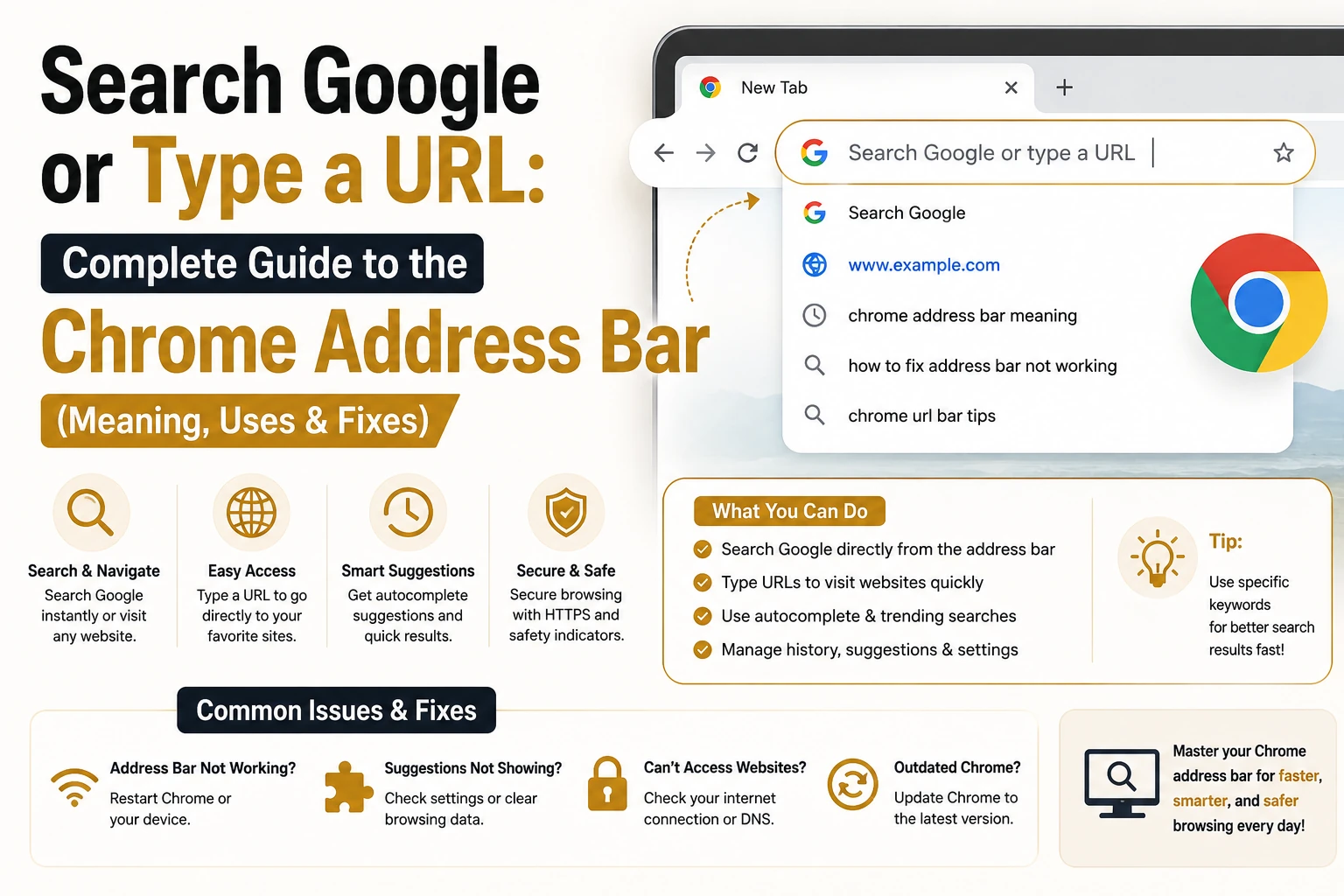
Open a new tab in Chrome, and there it is again: search Google or type a URL. Most of us scroll right past it. But some people stop and actually wonder what it means, especially the first time the same words show up as a notification on an Android phone and start looking a bit suspicious. And if you’ve ever typed a website name and ended up on a search results page instead of the actual site, you already know this phrase causes real confusion, not just curiosity. Below is what it means, how the address bar decides what to do with whatever you type, and how to fix the problems people run into, including that Android popup.
What Does “Search Google or Type a URL” Mean?
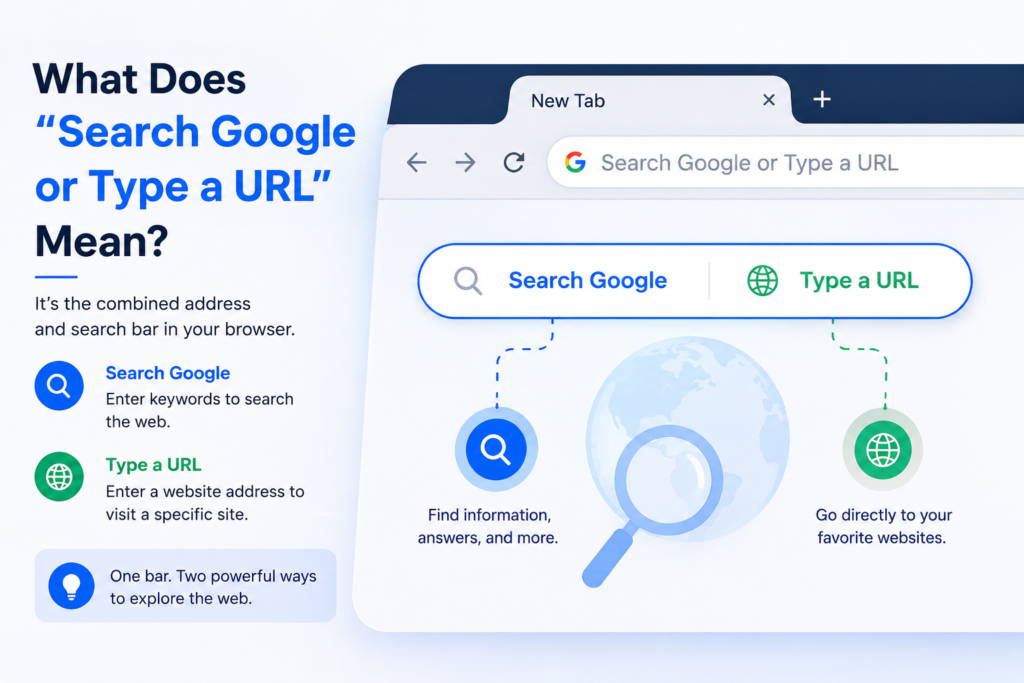
It’s placeholder text, nothing more. It sits in Chrome’s address bar and tells you the box does two jobs at once. Type a few words with spaces, something like “best pizza near me,” and Chrome treats it as a Google search. Type something shaped like a web address, say example.com, and Chrome tries to open that page directly. Search Google or type a URL isn’t a trick question. It’s Chrome describing exactly what the bar can do, and this combined search-and-address bar has been the norm across most browsers for years.
What Is the Chrome Omnibox?
Chrome actually has a name for this bar: the omnibox. “Omni” because it handles more than search and web addresses alone. It also pulls in bookmarks, browsing history, and even basic calculator math if you type numbers with a plus sign. Browsers used to keep a separate search box next to the address bar, which meant two fields doing overlapping jobs. Google merged them into one to cut the clutter. That’s also why suggestions start appearing before you’ve finished typing. The omnibox is quietly pulling from your history and installed extensions the whole time.
What Is a URL?
URL stands for Uniform Resource Locator, and it’s the address of one specific page online. It usually has a protocol like https, a domain such as example.com, and sometimes a path pointing to an exact page, like /blog/article-name. A URL takes you to one place. A search query does something different; it asks Google to find matching pages on your behalf. That distinction is really the whole reason the omnibox behaves the way it does.
How Does a Browser Know Whether to Search or Navigate?
Chrome checks whatever you type against a set of patterns before it decides anything. Text shaped like a domain, a dot followed by something like .com or .org, gets read as a URL. Text with spaces and normal wording gets sent off to Google as a search. It’s not perfect, though. A misspelled domain, or one using an extension Chrome doesn’t recognize, often gets treated as a search instead of a real site visit, which is honestly where most of the confusion starts.
Why Does Chrome Show “Search Google or Type a URL” as Placeholder Text?
Only shows up when the bar is empty. Think of it as a hint, not a setting you can turn off unless you change your default search engine entirely. Google kept the wording plain instead of clever, since the whole point is removing doubt about what the box does. Start typing, and it disappears, doing its job before you even notice it.
How to Search Google Using the Omnibox
Using Google Autocomplete and Search Predictions
Start typing, and Chrome throws up suggestions pulled from Google’s search index along with your own browsing habits. They shift with every letter, ranked roughly by relevance and popularity. Click one, or just keep typing your own thing.
Search for a Specific Word or Phrase (Exact Match Operators)
Wrap a phrase in quotation marks and Google searches for that exact wording, not loose matches scattered across a page. Good for checking how a specific phrase actually gets used online, or tracking down a quote.
Search a Specific Website on Google (site: Operator)
Type site: followed by a domain, then whatever you’re looking for, and Google limits results to that one site. Something like site:wikipedia.org browser history. Quicker than hunting through a site’s own clunky search tool.
Using Voice Search in Chrome
Tap the microphone icon in the omnibox on supported devices and just talk. Chrome sends the audio over to Google’s voice recognition system, and returns results the same way a typed search would, no real difference on the back end.
How Google Personalizes and Ranks Search Results
Location, search history, device, language- Google factors all of it in when ranking what shows up. Two people typing the same query can end up looking at fairly different results, and that’s by design, not a glitch.
How to Type a URL Directly
URL Autocomplete
Start typing an address you’ve visited before, and Chrome usually finishes it after just a few letters, pulling from history and bookmarks. Convenient, if occasionally annoying when it guesses wrong.
DNS Resolution (Step by Step)
Hit Enter on a URL, and your browser now has to track down the actual server behind that domain. That’s DNS, or Domain Name System, resolution, and it goes something like this:
- Your browser checks its own local cache first for the domain’s IP address.
- Nothing cached, it asks a DNS resolver, usually run by your internet provider.
- The resolver works through root servers, then top-level domain servers, then the domain’s own name servers.
- The correct IP address finally comes back to your browser.
Server Request and Response
IP address in hand, your browser fires off an HTTP or HTTPS request to that server. The server processes it and sends the page files back, and your browser renders them on screen. All of this usually happens in under a second.
HTTP vs HTTPS and Redirects
HTTPS encrypts everything moving between your browser and the server. HTTP doesn’t. Nearly every site runs HTTPS now and redirects HTTP requests automatically. Chrome still flags anything left on plain HTTP as “not secure,” worth noticing before you type in a password or card number.
Search Google vs Typing a URL: Key Differences
| Factor | Searching Google | Typing a URL |
| Speed | Slower, needs a results click | Faster, direct to page |
| Accuracy | Depends on ranking | Exact if the URL is right |
| Best for | Discovering new sites | Returning to known sites |
| Data sent to Google | Yes, the query gets logged | No, unless the site itself uses Google tools |
| Risk of typos | Low, results still show up | Can send you to the wrong or unsafe site |
When Should You Search Google?
Search Google when you’re not sure which site you actually need, when you’re comparing a few options, or when you just want information rather than one exact page. Also the safer move when you’re unsure how to spell a domain correctly in the first place.
When Should You Type a URL?
Type a URL when you already know it and want to skip the results page altogether. This is basically what most of us do for email, banking, or work tools we open every single day without thinking twice.
Which Is Faster and More Efficient?
Typing a known URL wins on speed since it skips the search results page entirely. Searching Google adds one extra step, but it’s the safer bet when you’re not fully sure of the address, since it lowers the odds of landing somewhere you didn’t intend.
Search Google or Type a URL on Different Browsers
Google Chrome
Chrome’s omnibox is really the reference point for all of this, running Google as the default search engine unless you’ve changed it yourself.
Mozilla Firefox
Firefox runs a similar combined bar, often reading “Search with Google or enter address,” depending on which search engine you’ve set as default.
Microsoft Edge
Edge, built on Chromium just like Chrome, shows a nearly identical bar, though Bing is the default here unless you switch it over to Google.
Safari
Safari calls it the smart search field on Mac and iOS, and it handles both jobs too, with Google as the default in most regions unless someone’s changed it.
Brave
Brave, also Chromium-based, defaults to its own search engine out of the box, though switching to Google or something else takes about ten seconds in settings.
Search Google or Type a URL Notification Popup on Android: How to Stop It
Why This Notification Keeps Appearing
A lot of Android phones show this exact notification as part of the Google app’s search widget or the Discover feed sitting underneath it. Google, or sometimes the phone manufacturer, places it there for quick access to search right from the notification shade. Nobody turned it on manually, and it wasn’t really built to be dismissed with one tap either.
Is It a Virus or Malware?
No, it isn’t. It’s a built-in Android feature tied to the Google app, plain and simple. It only becomes something to actually worry about if it shows up next to unfamiliar pop-ups or ads you never expected, and that points to a separate adware issue, not this notification itself.
Step-by-Step Fix to Remove It Permanently
- Open the Google app on your Android phone.
- Tap your profile icon in the corner, then Settings.
- Go to “General,” then look for “Search widget on home screen and lock screen,” or something close to that depending on your Android version.
- Turn off notifications for the search widget specifically.
- Still showing up? Head to Android Settings, then Apps, find the Google app, tap Notifications, and switch off the search suggestion category directly from there.
Common “Search Google or Type a URL” Problems
Why Does a URL Search Google Instead?
Usually comes down to Chrome not recognizing your input as a valid domain pattern. A typo, a missing extension, or an unsupported top-level domain are the usual suspects here.
Why Does the Browser Redirect to Another Search Engine?
If searches keep landing on some unfamiliar engine you didn’t choose, your default search setting has probably been changed, often by a browser extension installed without much of a look at what permissions it was asking for.
How to Fix Browser Hijacking Issues
Go through your installed extensions and remove anything you don’t recognize or don’t remember installing. Reset the default search engine back to Google, or whatever you’d rather use, in your browser settings. A malware scan afterward isn’t a bad idea if the redirect keeps coming back.
What Happens When You Enter an Incorrect URL?
Most browsers just show a “site not found” or DNS error page. Chrome, on the other hand, might run the text as a Google search instead if it can’t resolve it as a domain at all.
How to Customize Your Browser Address Bar
Changing Default Search Engine
In Chrome, that’s Settings, then Search Engine, then pick from the list. Firefox and Edge tuck a nearly identical option somewhere in their own settings menus.
Useful Address Bar Keyboard Shortcuts
Ctrl+L or Alt+D jumps you straight to the address bar. Ctrl+Enter tacks “www.” and “.com” onto whatever you’ve typed. F6 also selects the address bar on several browsers, a small shortcut most people never bother learning.
Privacy and Security Considerations
Privacy When Using Google Search
Every search run through the omnibox gets logged to your Google account if you’re signed in, and it shapes future suggestions and ad targeting unless you go in and adjust your privacy settings yourself.
Privacy When Typing a Direct URL
Typing a URL directly sends nothing to Google, unless the destination site itself is running Google Analytics or Google Ads, which is really a separate matter from just typing the address.
Common Scams and Risks to Watch For
Watch for lookalike domains copying real brands with one small spelling change. These tend to catch people exactly when a typo in the address bar accidentally matches a scam site instead of just triggering a normal search.
Common Myths About Searching and Typing URLs
Typing a URL isn’t automatically the safer move. A mistyped one can land you straight on a scam site, while a Google search often filters unsafe pages out through its own ranking system before you even see them. Here’s another one people believe: that the omnibox sends every keystroke straight to Google as you type. It doesn’t. Chrome mostly sends completed queries, or leans on suggestions stored locally, unless you’ve turned on specific prediction features that use partial input.
Search Google or Type a URL on Mobile vs Desktop: Key Differences
On mobile, the address bar usually sits down at the bottom for easier thumb reach, and voice search gets used far more than it ever does on desktop. Desktop users lean harder on keyboard shortcuts and autocomplete built from browsing history, since a full keyboard just makes typing faster. Mobile browsers also show fewer suggestions at once, mostly because there’s less screen to work with, not because the feature’s weaker.
Why “Search Google or Type a URL” Matters for SEO
Branded Search vs Direct Navigation Impact
When someone searches your brand name instead of typing the URL directly, it shows up in Search Console as branded search rather than direct traffic. Both count, but branded search is really a sign the marketing is landing, even when people can’t quite remember the exact web address.
Zero Click Searches and Featured Snippets
More and more searches end without a click at all now, since Google just answers the question right there on the results page through featured snippets or knowledge panels. Ranking for one of those still has value, even without a guaranteed visit to the site.
How to Get Your Website Found When People Search Google
Clear page titles, accurate meta descriptions, and content that actually answers the exact question someone’s typing. Pages matching search intent closely tend to beat out competitors running similar, less targeted content.
How Search and AI Are Changing Online Discovery
Search engines are blending regular links with AI-generated summaries for a lot of queries now. Fewer people click through for simple questions, while specific or more complex searches still send real traffic to full pages. Site owners have started writing content that answers questions directly, since that format tends to get pulled into these summaries more often than not.
Tips for Faster and Safer Browsing
Bookmark the sites you visit often instead of retyping the address every single time. Keep the browser updated, since security patches frequently target address bar and DNS-related issues specifically. Look closely at a URL before entering login details, especially right after clicking a link from an email or text message.
Search Google or Type a URL: Which Is Better?
Really depends on what you already know going in. Typing a URL wins when you’re sure of the exact address. Searching Google works better when you’re exploring, comparing, or just not confident about the spelling.
Conclusion
Search Google or type a URL is really just Chrome explaining, in plain words, how its own address bar works. One box, two jobs, and a set of rules quietly deciding which one applies based on what you type. Knowing the difference between a search query and a direct URL means faster browsing, fewer scam site surprises, and an easy fix the next time that Android notification shows up uninvited. Whether you search Google or type a URL really comes down to what you already know before you hit enter.
Frequently Asked Questions
What does “Search Google or type a URL” mean?
It’s placeholder text in Chrome’s address bar, telling you the box can either run a Google search or take you straight to a website if you type a valid address.
Is “Search Google or Type a URL” a virus?
No. It’s a normal browser feature, or in some cases an Android notification tied to the Google app, not malware of any kind.
Why does typing a website name search Google instead?
Chrome isn’t recognizing the text as a valid URL pattern, usually because of a typo, a missing extension, or an unrecognized domain format.
Can you remove the “Search Google or Type a URL” notification?
Yes. Turn it off through the Google app’s search widget settings, or turn off that specific notification category from your Android system settings directly.
Is it better to search Google or type a URL directly?
Depends on the situation you’re in. Typing a URL is faster for sites you already know well. Searching Google is more reliable when you’re unsure of the exact address.
Is typing a URL safer than using Google Search?
Not always. A mistyped URL can land you on a scam site, while Google’s ranking system often filters unsafe results out during a normal search.
Does typing in the address bar send information to Google?
Only when you’re actually running a search does a direct URL send query data to Google; otherwise, it sends no query data unless the destination site itself is using Google’s own tools.
What is the difference between a URL and a search query?
A URL points to one exact web address. A search query is just a set of words used to find matching pages through a search engine.
How can I change my browser’s default search engine?
Head into your browser’s settings, find the search engine section, and pick whichever option you’d rather use from the list.

Senior SEO Content Marketing Manager at Trendusai.com
Rashida Hanif is a Senior SEO Content Marketing Manager, specializing in data-driven content strategy and SEO. She helps brands improve online visibility through keyword research, content planning, and AI-powered marketing insights.