
A parcel goes missing off the porch. The camera caught something, but the app never sent the alert, or sent it too late to matter. That’s usually when people start looking for a better camerabewaking app.
A camerabewaking app connects your security cameras to your phone. Some call it a home security app, others an IP camera app, but the job stays the same: stream live video, send motion alerts, and store footage so you can review it later. Picking a reliable option depends on its key features, not the longest spec sheet on the box.
This guide explains how these apps work, which features are worth paying for, and how the top options compare on price and storage.
What Is a Camerabewaking App? (How It Works)
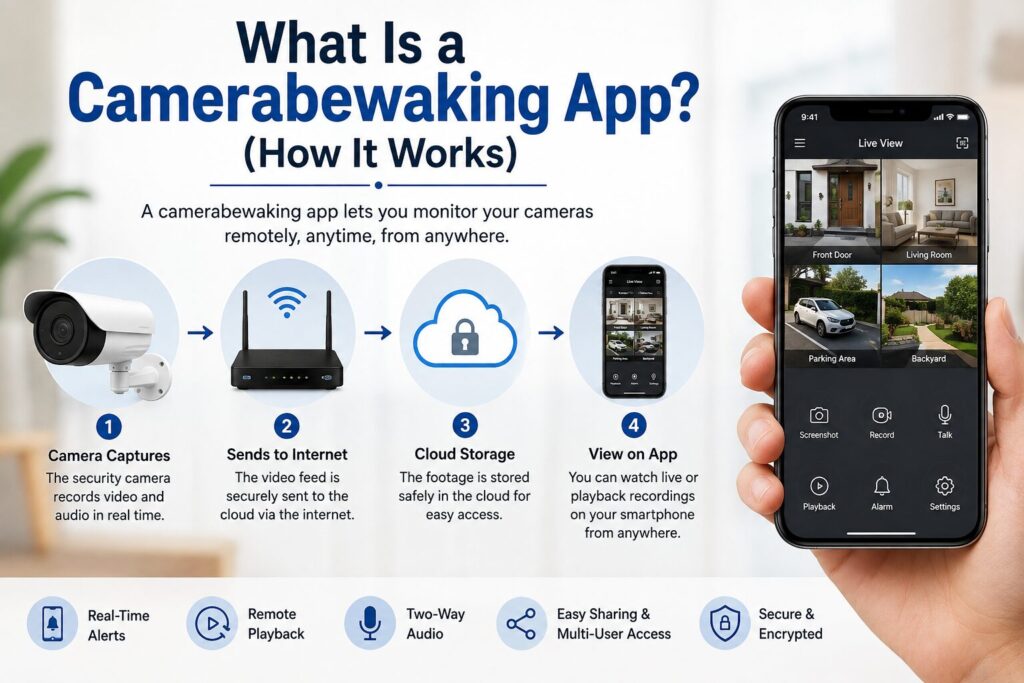
A camerabewaking app is the bridge between your camera hardware and your phone. Without it, a security camera is just a lens on a wall. The app is what turns raw footage into something you can search, watch, and share.
An IP camera and its app aren’t really separate purchases, even though stores sell them that way. One is the eye; the other makes that eye useful. A live feed with no one watching, and no way to reach you, isn’t a security solution.
Most setups work the same way: the camera records and pushes its feed to a hub, a cloud server, or your phone directly. The app then displays that stream, usually a second or two behind real time.
Camera-to-App Connection: Wi-Fi, RTSP, P2P, Cloud Relay
Cameras connect to the app in a few ways. Wi-Fi covers most home setups. Some IP cameras use RTSP, a streaming protocol built for local networks, which works well when you’re viewing from the same network as the camera.
Remote viewing works differently. Most consumer apps use P2P (peer-to-peer) connections or a cloud relay, so your phone talks to the manufacturer’s servers rather than the camera itself. That’s why a stable connection matters as much as the camera you bought.
IP Cameras vs. Traditional CCTV
Traditional CCTV writes to a local DVR box, so you need to be near it, or wired into it, to view anything. An IP camera streams over the internet instead, making the app your one access point from anywhere. That’s why IP systems have largely replaced home CCTV: the video quality holds up, and you can check your camera system from three states away.
Live Streaming, Motion Alerts, and Storage in Plain Terms
Live streaming is watching the feed as it happens. Motion alerts are the notifications you get when something moves in frame. Storage is where the clips end up, whether that’s the cloud, a local card, or both. Every app runs on these three basics. Night vision, two-way audio, and AI detection all sit on top of that foundation.
AI-Based Person, Pet, and Vehicle Detection
Older motion detection reacted to anything: a branch, a cat, headlights sweeping across a wall at 2 a.m. Newer apps use AI to tell a person apart from a pet or a passing car before sending an alert. Person detection alone cuts down on nuisance alerts. Add vehicle recognition, and the app starts telling you something genuinely useful.
Why Mobile Surveillance Has Become Essential in 2026
Security cameras aren’t a niche purchase anymore. More homes than ever run at least one camera, and both remote work and rising package theft are pushing that number higher.
Rising Home Delivery Theft and Remote-Work Security Needs
Package theft is a major driver here. A camerabewaking app that flags a delivery the moment it lands and flags any lingering nearby gives you a real chance to stop theft before it happens.
Remote work adds to this too. More people are home during the day, and more people travel for work while their house sits empty. A mobile surveillance app covers both cases, letting you check in from wherever you are, not just from home.
Small Business Affordability vs. Traditional CCTV Installs
Traditional CCTV for a small business meant hardwired cameras, a DVR box, and a technician for every change. An app-based setup costs less upfront and lets the owner adjust settings directly, without a service call or a wait for an appointment.
Key Features to Look For Before You Buy
Camerabewaking apps vary in depth, and some of that difference only shows up once you’re relying on it. Check the app against this list before buying hardware.
Live HD streaming and frame rate. Resolution gets the attention, but frame rate matters just as much. A high-resolution camera with a choppy frame rate still turns fast movement, a car, a runner, a package grab, into a blur.
Motion detection accuracy. Look for apps that let you draw custom activity zones. Excluding a busy street or a swaying tree keeps motion alerts useful instead of constant.
Cloud vs. local recording. Cloud recording keeps a copy off-site, so it survives even if the camera is stolen, usually for a few dollars a month. Local storage, on a microSD card or hub, skips the fee but disappears with the hardware. Many apps now support both, so you can keep a short local backup and pay for cloud storage only if you need the longer history.
Night vision. Infrared lets cameras capture usable footage in total darkness. This matters most for driveways and back doors without a porch light.
Two-way audio. Talk through the camera to tell a delivery driver where to leave a package, or let someone on the porch know you’re watching. It’s a small feature that gets used often.
Multi-camera dashboard. With more than one camera, the dashboard becomes essential. It should let you switch between feeds quickly, from one screen, instead of juggling separate apps per brand.
Smart home integration. Many apps now connect with Amazon Alexa, Google Assistant, or Apple HomeKit. You can ask for a camera feed by voice, or automate lights to turn on when motion is detected after dark.
Data privacy and encryption. This gets overlooked often, but it shouldn’t. A camera system records your home or business daily, so end-to-end encryption and a clear data-retention policy matter. Check how long footage is stored, who can access it, and how often firmware updates arrive. In the EU, camerabewaking data also falls under GDPR, which is worth checking before installation.
Home Security Use Cases
Protecting deliveries. Instant alerts let you watch a delivery arrive in real time. Some apps let you speak to the driver directly through the camera.
Monitoring children and elderly family members. Parents can check on kids playing outside, or confirm when they get home from school. The same setup works for an elderly parent living alone, without a phone call or a drive over.
Pet monitoring. Indoor cameras paired with a camerabewaking app let owners check on pets during the workday. Two-way audio lets you talk to your pet, and some setups even trigger a treat dispenser through the same feed.
Vacation and away-from-home monitoring. Live access to every camera beats relying on a neighbor to check in, and motion alerts flag anything unusual right away.
Business Security Use Cases
Employee safety. Managers can confirm a store or warehouse is secure after hours without driving over, useful for businesses running odd hours or overnight shifts.
Theft and shrinkage prevention. Visible cameras discourage shoplifting on their own. Retailers often pair store-security systems with a camerabewaking app to reduce shrinkage, flag vendor fraud, and catch inventory issues early.
Multi-location management. Owners running several stores can monitor every location through one app, with one login and no need to juggle separate accounts.
Operational oversight and compliance logging. Some businesses use footage to confirm that opening or closing procedures were followed, or to support compliance records. This works best with apps that support searchable clips and exports.
Top 10 Camerabewaking Apps in 2026
Pricing changes often, so treat the numbers below as a starting point. Confirm current plans directly on each provider’s site before you commit.
- Ring App: Best for households already using Alexa or Ring hardware. Live view is free; recording and smarter detection need a Ring Protect plan, starting at $4.99 a month.
- Arlo Secure: Ideal for buyers who want sharp video and AI-based person and vehicle detection. New cameras include a free trial; after that, Arlo Secure Plus starts at $7.99 a month for one camera.
- Google Home (Nest): Suitable for anyone already running Nest speakers or thermostats. Live view and basic alerts are free; event history and facial recognition require Google Home Premium, from $10 a month. Some models include six hours of free local event history.
- eufy Security: Privacy-focused users who’d rather skip a subscription can choose the eufy Security app. Most eufy cameras save to a HomeBase hub or microSD card for free. Optional cloud backup starts at $2.99 a month per camera.
- Wyze App: Best for first-time buyers on a budget. The app is free, with 12-second cloud clips included. Cam Plus, which adds continuous recording and AI detection, starts at $2.99 a month per camera.
- ADT+: Want 24/7 professional monitoring rather than self-monitoring? ADT+ is a good option. Self-monitoring starts at $9.99 a month; professional monitoring starts at $24.99 a month and includes live video verification when an alarm trips. No local storage.
- SimpliSafe App: Best for buyers who want a full DIY alarm system alongside cameras. Basic self-monitoring is free; camera recording and video verification plans start at $9.99 a month. No local storage.
- Blink Home Monitor: Best for renters and apartment dwellers who need decent coverage without much setup. The app is free, with live view and short clips included. The Basic plan, which adds 60 days of cloud storage and AI detection, starts at $3.99 a month per device.
- Reolink App: Best for people who want no ongoing fees and flexible connectivity, including 4G cellular models. Most cameras record to a microSD card for free, with AI detection running on-device. Optional cloud storage starts at $3.49 a month.
- Alfred Camera: Best for anyone who’d rather reuse an old phone than buy a new camera. The free version covers live streaming and basic alerts. Premium, which adds HD video and continuous recording, starts at $5.99 a month.
Quick Comparison Table
| App | Best For | Local Storage | Starting Price | Subscription Required |
| Ring | Alexa households | No | Free (view-only) | For recording |
| Arlo Secure | High-res AI detection | No | Free trial | For AI features |
| Google Home (Nest) | Google ecosystem | Yes (limited) | Free | Optional |
| eufy Security | No-subscription storage | Yes | Free | No |
| Wyze App | Budget buyers | SD card | Free | Optional |
| ADT+ | Professional monitoring | No | $9.99/mo | Yes |
| SimpliSafe | Full alarm + camera | No | Free (basic) | For full features |
| Blink Home Monitor | Renters, apartments | USB option | Free | Optional |
| Reolink App | No ongoing fees | Yes | Free | No |
| Alfred Camera | Phone-as-camera | Yes | Free | No |
How to Choose the Right App for Your Situation
- Single entryway, renting your place? Alfred Camera or Wyze covers it, with no new hardware and no subscription commitment.
- Running multiple cameras on a larger property? Reolink or eufy avoids stacking a subscription fee for every camera.
- Want a real person to respond when something’s wrong, not just a push notification? ADT+ and SimpliSafe are both built around live agents.
- Already using Google or Amazon devices? Stick with Nest or Ring for a single login and app.
Still confuse? Test the free tier for at least a week before paying for anything. Notification accuracy often looks great in a demo and behaves differently once it’s your actual front door.
Setup and Installation Process
- Check your internet and router. A single HD camera needs roughly 5 Mbps. Four cameras need closer to 20 Mbps, and multiple 4K cameras can push past 50 Mbps. Upload speed matters as much as download, since cameras constantly send footage out.
- Download the app and set up your account. Use a strong, unique password, and avoid public Wi-Fi for this step.
- Pair the camera. Most apps do this by scanning a QR code on the device or entering a camera ID manually.
- Configure alerts and zones. Draw activity zones that exclude harmless, constant movement, like a street or a tree. This step alone cuts down false alerts significantly.
- Set up storage. Choose a cloud plan, insert a microSD card, or connect a hub, depending on what your app and camera support.
- Test coverage and night vision. Walk through the camera’s field of view during the day and again at night to confirm alerts fire correctly and night vision reaches where it should.
Most people finish setup in 20 to 30 minutes per camera.
Privacy, Security, and Legal Compliance
End-to-end encryption basics. End-to-end encryption scrambles footage before it leaves the camera, and only your account can unscramble it. Without this, footage sitting on a server is more exposed if that server is ever breached.
GDPR and local surveillance-law considerations. In the EU, a camerabewaking system that captures shared space, a driveway, a building entrance or a public sidewalk falls under GDPR and local surveillance rules. You’re generally expected to avoid recording property that isn’t yours where possible, and to inform others if the camera reaches shared or public space. Rules vary by country, so check local guidance before pointing a camera near a street or a neighbor’s yard.
Sharing access safely with family or staff. Most apps let you add secondary users with limited, role-based access instead of sharing your main login. Use that option, and revoke access as soon as someone no longer needs it.
Common Issues and Fixes
Camera offline. Usually a weak Wi-Fi signal, a power blip, or a router issue. Restarting both the camera and router resolves most of these.
Delayed notifications. Often caused by battery optimization quietly closing the app in the background, or by network congestion. Check that notifications and background refresh are turned on.
Poor video quality. Check your bandwidth first, then the lens for dirt or condensation, then the resolution setting in the app. Don’t rule out a firmware update that’s gone unapplied for months.
Want to Build Your Own Camerabewaking App?
Camera adoption keeps rising, which is creating real demand for custom surveillance solutions, especially among rental property managers, small retailers, and warehouse operators who need something more specific than what’s already on the app store.
Core Technical Requirements
A working camerabewaking app needs a streaming protocol (RTSP for local viewing, WebRTC or P2P for remote access), push notifications, cloud storage infrastructure, and AI-based detection covering people, vehicles, and ideally package identification for delivery-heavy use cases. Secure authentication matters as much as the video pipeline, so OAuth and role-based access aren’t optional. Running the AI layer on-device, rather than sending every frame to the cloud, is usually where specialized development expertise pays off.
Typical Cost Ranges
Here’s a general range for app development cost, by complexity tier:
| App Complexity | Estimated Cost | Timeline |
| Basic App | $15,000–$35,000 | 3–5 months |
| Mid-Level App | $50,000–$100,000 | 6–9 months |
| Complex App | $100,000–$250,000 | 9–12+ months |
Choosing the wrong development partner at this stage often costs more than the budget suggests, mostly in wasted months and features that need rebuilding later.
Monetization Models
Freemium subscription tiers, hardware bundling, monitoring add-ons, and B2B licensing to smaller camera makers cover most of this space. Apps that turn a profit usually combine two or three of these rather than relying on just one.
The Future of Mobile Surveillance (2026 and Beyond)
On-device AI is closing the gap between a camera detecting motion and an app sending an alert, since analysis now happens on the camera instead of a distant server. Facial recognition, package identification, and predictive alerts are moving from premium add-ons to standard features across most apps. Detection is also becoming less reactive, aiming to flag a pattern before something happens rather than just recording after the fact. Expect tighter automation too, where one motion event can trigger lights, locks, and a camera feed together, without extra setup.
Final Thoughts
A camerabewaking app has quietly become the real product here, more than the camera hardware itself. The best apps of 2026 get the basics right: fast alerts, clear video, and storage that doesn’t lock you into fees you didn’t ask for.
Whether you choose an app already on the market or build your own, it comes down to matching the app to how you’ll actually use it, not to whichever one has the longest feature list.
FAQs
Can I use an old phone as a security camera?
Yes. Apps like Alfred Camera turn an old smartphone into a working security camera. You just need Wi-Fi and a good vantage point.
Do these apps require a monthly fee?
Not always. eufy, Reolink, and Wyze all offer free local storage with no subscription required. Cloud storage and smarter AI detection are usually what sit behind a paid plan.
Do they work remotely, away from home?
Yes. Most camerabewaking apps stream over the internet, so live footage and alerts reach your phone from wherever you are.
Are they compatible with Alexa or Google Assistant?
Many are. Ring, Google Home (Nest), and several others connect directly with Alexa or Google Assistant for voice commands and feed viewing.

Senior SEO Content Marketing Manager at Trendusai.com
Rashida Hanif is a Senior SEO Content Marketing Manager, specializing in data-driven content strategy and SEO. She helps brands improve online visibility through keyword research, content planning, and AI-powered marketing insights.