
Three time zones, one team. Files sit on someone’s laptop instead of a shared drive, and half the time nobody notices until it’s too late. A task gets marked done in Slack but never updates the project board, so two people quietly end up working on the same thing. That’s the gap team collaboration tools are supposed to close, and it’s why remote and hybrid teams lean so hard on cloud based productivity apps now. Keep files, tasks, and conversations somewhere anyone can reach, a browser at a kitchen table, a phone on a train, and a lot of that friction just goes away. This guide walks through 15 of the best productivity apps for teams in 2026: what each one is actually good at, where it falls short, and how to build a stack that fits your team instead of someone else’s.
What Are Cloud-Based Productivity Apps?
Cloud based productivity apps run on remote servers instead of a local hard drive. Open them in a browser or a lightweight app and whatever you’re working on stays synced across devices. No bulky install. No manual backup routine. No single laptop holding the only copy of a file that everyone’s quietly terrified of losing. Some people call these cloud-based productivity tools, others just say cloud workspace. Either way, the idea holds: nothing depends on one machine.
That’s the real difference from on-premise software, where someone in IT installs updates, manages storage, and patches security holes by hand, usually on a schedule nobody enjoys. A cloud productivity platform shifts most of that onto the vendor. Updates roll out on their own. Storage scales up as needed. Access gets granted or pulled in a couple of clicks instead of a ticket queue. It’s the cloud based productivity apps vs traditional software divide in a nutshell: less hardware to babysit, more reliance on a vendor’s uptime. A handful of newer platforms even market themselves as a cloud-native productivity suite, built for this from day one instead of retrofitted from older desktop software.
And this isn’t just an enterprise thing anymore. Small teams and freelancers run daily operations through cloud productivity software just as often as global companies, mostly because it cuts the cost and hassle of managing physical servers nobody on a five-person team wants to deal with. By 2026 cloud tools aren’t really an upgrade path. For most teams it’s just where you start.
Key Features to Look For in Cloud-Based Productivity Apps
Not every cloud productivity platform goes equally deep, and marketing pages rarely make that obvious. Here’s what tends to matter once you’re using something every day instead of clicking through a demo.
Real-time collaboration comes up more than people expect. It means more than one person editing the same document, sheet, or board at once, with changes appearing right away instead of after someone hits save. Cross-device sync is the other half of that equation: work started on a laptop should open the same way on a phone without you double-checking anything got lost.
Then there’s control. Granular permissions let you decide who can view, edit, comment, or share, down to a specific folder rather than the whole workspace. Native integrations matter too, connections to the email, calendar, and storage apps your team already uses so nobody’s exporting and re-uploading the same file three times a week.
A few more things to check before committing to anything. Offline access with auto-sync so work doesn’t stall the moment wifi drops. Data encryption and compliance support, SOC 2, ISO 27001, GDPR, or HIPAA depending on your industry. AI assistance that helps with real workflow automation rather than a chatbot bolted onto the sales page. And scalable pricing, plans that grow with headcount instead of shoving you into an enterprise tier before you need one.
Every review below points back to this list.
Categories of Cloud Productivity Tools
Cloud based productivity apps generally split into five categories, and most teams end up using more than one at a time whether that was the plan or not.
Document and office suites cover word processing, spreadsheets, and presentations built for shared editing. Project and task management tools, sometimes marketed as work management software, give you boards, timelines, and task lists that make it obvious who owns what and by when. Team communication tools, the cloud-based collaboration tools most people just call team chat, handle video calls and channels for the daily back and forth. Cloud storage and file sharing tools focus on centralized hosting with version history and access control. All-in-one platforms, sometimes billed as an all-in-one productivity platform or simply an all-in-one workspace, try to fold several of those jobs into one place, with mixed success depending on the tool.
Keeping these categories straight makes the comparison table below easier to read, since tools in the same category tend to solve the same problem in slightly different ways.
Comparison Table: Top 15 Cloud-Based Productivity Apps at a Glance
| Tool | Category | Key Feature | Best For | Features (/10) | Ease of Use (/10) | Value (/10) |
| Google Workspace | All-in-one | Real-time doc editing | General teams | 9 | 9 | 8 |
| Microsoft 365 | All-in-one | Deep Office integration | Enterprise teams | 9 | 7 | 8 |
| Slack | Communication | Channel-based messaging | Fast-paced teams | 8 | 9 | 7 |
| Asana | Project management | Workflow visibility | Cross-functional teams | 8 | 8 | 7 |
| Trello | Project management | Kanban boards | Small teams | 6 | 9 | 8 |
| Notion | Document and PM hybrid | Flexible workspace pages | Startups | 8 | 7 | 8 |
| ClickUp | All-in-one | Customizable views | Teams wanting one tool | 9 | 6 | 8 |
| Zoho Workplace | All-in-one | Bundled office suite | Budget-conscious teams | 7 | 7 | 9 |
| Monday.com | Project management | Visual dashboard reporting | Ops and marketing teams | 8 | 8 | 7 |
| Lark | All-in-one | Communication and docs combined | Global remote teams | 8 | 7 | 7 |
| Airtable | Document and database | Database-style organization | Data-heavy workflows | 8 | 6 | 7 |
| Confluence | Document and wiki | Knowledge management | Engineering and docs teams | 7 | 6 | 7 |
| Miro | Visual collaboration | Whiteboard ideation | Design and planning teams | 7 | 8 | 7 |
| Dropbox Business | Cloud storage | File sharing and governance | File-heavy teams | 7 | 9 | 7 |
| Zoom Workplace | Communication | Video-first collaboration | Meeting-heavy teams | 7 | 8 | 7 |
These scores reflect fit against the feature checklist above, not a universal ranking. A lower ease-of-use score, like ClickUp’s, doesn’t mean the tool is weak. It means the payoff takes longer to reach.
A few other names come up often in the same conversation. Smartsheet and Wrike suit teams that want heavier portfolio-level reporting than Trello offers. Basecamp is worth a look for straightforward all-in-one simplicity with almost no setup. And Trello’s own Butler feature handles small automations, moving cards, assigning due dates, without needing a separate tool for it. None of them made the final 15 here, but they’re worth knowing about depending on what you actually need.
Editor’s Top 3 Picks
Want the best cloud based productivity app for teams without reading the whole breakdown? These three cover most situations.
Google Workspace is the best overall pick. Documents, spreadsheets, video calls, and storage in one subscription, with real-time collaboration that holds up even with a full team in one doc at once.
Zoho Workplace wins on value. It bundles email, docs, and chat for less than most competitors charge, and that gap shows up fast once you’re paying for more than a handful of seats.
Trello is the easiest to use, full stop. The Kanban boards need almost no onboarding, so pick this one if nobody on your team is going to be the dedicated admin.
Full List: 15 Best Cloud-Based Productivity Apps
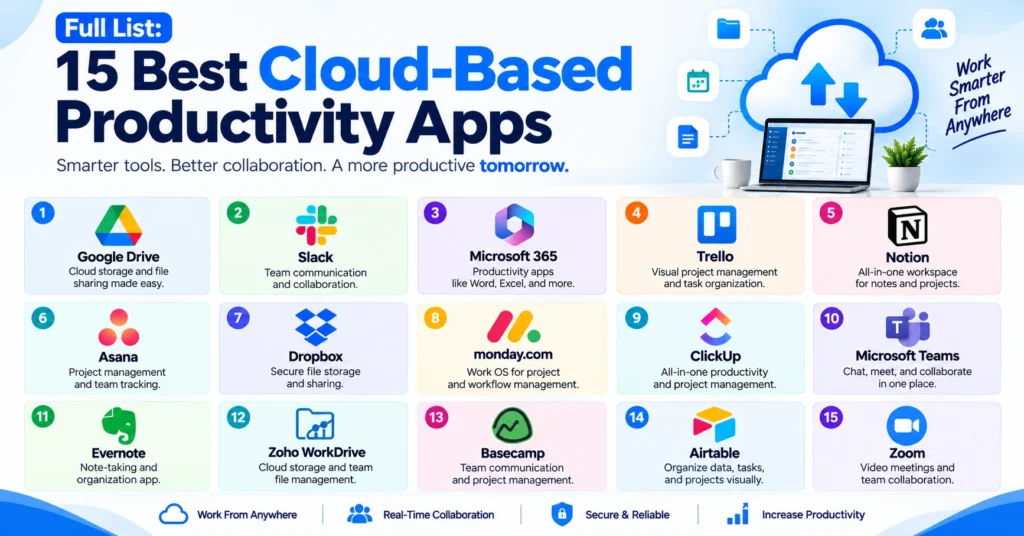
1. Google Workspace
Ties Gmail together with Docs, Sheets, Slides, and Drive under one login. What stands out is how well several people can edit the same file at once, comment threads and version history included, without anyone stepping on somebody else’s changes. Project management is thin here, so you’ll probably pair it with something else for that part. Good for teams that just need a dependable document and communication base without overthinking it.
2. Microsoft 365
Brings Word, Excel, Teams, and OneDrive together, and it’s still got the deepest desktop-to-cloud integration on this list if your team already lives in Office files. Compliance runs deep too, which enterprises care about more than a ten-person startup usually does, though collaboration can feel a step behind Google’s tools in shared documents, especially with a lot of people editing at once. Think a finance department that needs an audit trail on every spreadsheet edit; that’s where Microsoft 365 earns its keep.
3. Slack
Sorts team communication into channels instead of endless email threads. Once a team gets used to it, going back to email for daily coordination feels almost painfully slow. Search is fast, app integrations are extensive, but channel sprawl is real, without naming discipline early on you’ll end up with a graveyard of half-dead channels within a few months. A support team routing customer issues into dedicated channels is a fair example of where this shines.
4. Asana
Built around workflow visibility, so a manager can see where a task actually stands without pinging someone to ask. Sounds small until you’ve lived without it. Timeline and dependency views get genuinely useful once a project has more than a couple moving parts, though setup takes longer than expected for bigger teams. Fits cross-functional teams juggling several projects better than it fits one small team doing one thing.
5. Trello
Keeps things visual with Kanban boards and barely any learning curve. For anyone hunting a genuinely useful cloud productivity apps free plan before paying anything, Trello’s free tier covers most small teams without pushing them toward a paid plan right away, though reporting gets thinner once you’re managing a bigger portfolio. Works best at a smaller scale, a five-person marketing team running a content calendar, say.
6. Notion
Blends documents, databases, and task tracking into pages you shape however you want. That flexibility is the whole appeal, and also the risk, since workspaces sprawl and get messy fast without someone setting up a clear structure early. Startups building their own processes from scratch tend to get the most out of it.
7. ClickUp
Tries to work as an all-in-one productivity suite, replacing several separate tools with customizable views for tasks, docs, and goals, plus ClickUp Brain for automation suggestions. Deep feature set, maybe too deep for a small team just getting started, since the sheer number of settings can overwhelm new users fast. Makes more sense for teams ready to consolidate several tools into one and willing to spend real time on setup first.
8. Zoho Workplace
Bundles email, document editing, and chat for noticeably less than most of the bigger-name suites charge. The interface isn’t as polished, you’ll notice it in small ways, but the value holds up well for small and mid-size businesses watching per-seat costs closely.
9. Monday.com
Leans on color-coded dashboards that make project status easy to scan at a glance, and the automation rules genuinely help once set up right. Pricing climbs faster than expected once you add more seats, worth budgeting for ahead of time. Good fit for operations and marketing teams that need progress visible without another status meeting.
10. Lark
Folds chat, video calls, docs, and calendar into one app, built with global and hybrid teams in mind from day one. Translation and time zone tools are stronger here than most competitors offer, though the integration ecosystem thins out outside teams already working across Asia. Best for distributed teams spread across several countries and time zones, exactly the hybrid team tools scenario Lark was built around.
11. Airtable
Looks like a spreadsheet but behaves like a database, useful for tracking things a basic task list can’t really handle, linked records across a product roadmap, for instance. Takes longer to set up than something like Trello, no way around that. A product team tracking feature requests with linked records is about as typical a use case as it gets.
12. Confluence
Works best as a knowledge base, usually paired with Jira for engineering teams that need documentation and version control in one place. On its own it’s not built for day-to-day task tracking, so it tends to sit next to another tool rather than replace one entirely.
13. Miro
A digital whiteboard, genuinely good for brainstorming and mapping out a process during a remote workshop. Not meant for tracking ongoing work or reporting across a portfolio, so keep it in its lane. Design and planning teams running remote sessions get the most mileage out of it.
14. Dropbox Business
Focuses on file storage and sharing, with solid version history and admin controls that do what they’re supposed to. Built-in collaboration is limited compared to a full suite, so it fits teams generating a lot of files that need organizing more than teams hunting for one all-in-one tool. Box is a common alternative here, similar file governance with a slightly different interface and admin setup.
15. Zoom Workplace
Has pushed past just video calls into chat, docs, and scheduling, though its video conferencing integration is still what it’s best known for. Video quality is dependable, scheduling is easy, and the newer non-video features are still catching up to tools built specifically for those jobs. Makes sense for teams where meetings are the main way work actually gets coordinated.
Industry-Specific Use Cases for Cloud-Based Productivity Apps
Real estate teams often centralize lead pipelines using a CRM connected to Notion or something similar, keeping property details, client notes, and follow-ups in one place instead of scattered across spreadsheets nobody updates consistently.
Recruitment firms coordinate candidate pipelines by pairing Asana for stage tracking with Google Workspace for resume storage and interview scheduling. Recruiters and hiring managers end up looking at the same live view instead of chasing separate spreadsheets that fall out of sync.
Legal and professional services teams lean on tools with stronger compliance support, since client files need controlled access by design, not as an afterthought. That usually means thinking about how those controls work in practice, especially when files are accessed across different devices and locations. Confluence or Box-style storage with layered permissions fits better here than open, freeform collaboration tools.
Creative agencies move ideas from concept to delivery using Miro for early brainstorming and Notion or Asana once production starts. That keeps the creative side and the operational side connected instead of living in two tools that never talk to each other.
AI Features Compared Across Cloud Productivity Platforms
Most cloud based productivity apps now ship with some kind of AI assistant. What that assistant actually does differs quite a bit once you look past the label.
| Platform | AI Feature | What It Does |
| Google Workspace | Gemini | Drafts emails and documents, summarizes long threads |
| Microsoft 365 | Copilot | Generates document drafts, summarizes meetings, builds spreadsheet formulas |
| Slack | Slack AI | Summarizes channel activity, surfaces missed messages |
| Asana | Asana Intelligence | Suggests task risk flags, drafts status updates |
| ClickUp | ClickUp Brain | Automates task creation, summarizes docs and comments |
| Notion | Notion AI | Drafts and edits page content, answers questions from workspace data |
None of it replaces someone reviewing the output, not yet anyway. What it’s genuinely good for is speeding up a first draft or saving you from scrolling through a week of messages looking for one detail. For most teams that’s worth more than a flashier feature nobody ends up touching.
Security, Compliance and Data Governance
Security shouldn’t be an afterthought when picking cloud based productivity apps, especially if your team handles client or patient data.
Encryption at rest and in transit protects files both while stored and while moving between devices. This should be standard, not an add-on you pay extra for, so confirm it before signing anything.
Worth checking too, which compliance certifications a vendor actually holds. SOC 2, ISO 27001, GDPR, and HIPAA cover most industries and regions, though which ones matter depends on your clients and where they’re based. A tool missing one isn’t automatically unsafe. It just means digging a little deeper before trusting it with anything sensitive.
For regulated industries like legal, healthcare, and finance, suites with strong admin controls and audit logs, Microsoft 365 and Dropbox Business among them, tend to hold up better than lighter tools built mainly for speed. Compliance scope can shift between plan tiers, so confirm current certification status directly with the vendor rather than assuming it carries over from a lower plan.
How to Choose the Right Cloud Productivity Software for Your Team
A handful of things decide whether a tool actually fits, well beyond whatever the feature list promises.
Team size and structure come first. A five-person team and a two-hundred-person department need very different amounts of structure, and buying for the wrong size wastes time either direction. Your existing tech stack matters just as much, check integration options before committing, since switching core tools later is more disruptive than most people expect going in.
Budget and pricing model deserve real attention. Per-seat pricing adds up faster than it looks on the sales page, so model out actual headcount growth before signing anything long term. Security and compliance needs loop back to the certifications above, and the learning curve matters more than people give it credit for; a powerful tool nobody uses right delivers less than a simple one the whole team actually adopts.
Mobile and offline access rounds things out. This matters most for remote team tools specifically, so confirm it directly if your team travels or works somewhere the connection isn’t always reliable.
One thing worth saying plainly: most teams end up running two or three tools together, not one all-in-one platform that supposedly does everything. A communication tool, a project tracker, and a document suite, each doing its own job well, usually beats forcing everything into one system that handles every job only okay.
Common Pitfalls When Selecting Cloud-Based Productivity Apps
Treating custom fields as free text is an easy mistake early on. It breaks reporting and dashboards down the line since inconsistent entries can’t be filtered or grouped reliably once the data’s already a mess.
Running a large workspace without naming or permission standards causes trouble too. Files and channels multiply fast without early structure, and cleaning it up later is a lot harder than setting it up right the first time would have been.
Expecting deep document-revision workflows from task-first tools sets people up to be disappointed. A project tracker isn’t a substitute for a real document suite with proper version history, no matter how many features get bolted on.
Over-automating without a troubleshooting plan is another one. Automation rules that break quietly can cause missed tasks or duplicate notifications for weeks before anyone notices something’s off.
Using visual or whiteboard tools for portfolio-level reporting rarely works out. Miro and similar tools are built for ideation, not for tracking progress across dozens of projects at once.
Off-the-Shelf vs Custom-Built Productivity Tools
Most teams never actually outgrow off-the-shelf cloud based productivity apps, whatever a vendor selling custom builds might tell you. A few signs suggest a team genuinely has: constant workarounds baked into daily workflows, integrations that just don’t exist for specific internal databases, or per-seat licensing costs that stop making sense past a certain headcount.
Custom development solves gaps generic SaaS tools can’t touch, connecting directly to a proprietary internal database, building an approval chain unique to a specific industry, or dropping per-seat costs entirely once a team is large enough to justify it. It costs more upfront and takes longer to build, so this path makes sense only after off-the-shelf options have actually been tested and found lacking, not as a first move because a tool felt slightly limiting on day one.
Future Trends in Cloud Productivity Software
AI-first workspaces are coming, where AI assistance gets built into every document and task instead of tacked on as a separate feature nobody asked for. Predictive workflows are close behind, tools starting to suggest next steps based on past team behavior instead of waiting for someone to type a command every time.
Consolidation into fewer all-in-one platforms keeps picking up too, as teams tire of managing a dozen separate subscriptions for jobs that overlap. Stronger offline capabilities are showing up more, since remote work tools still have to function somewhere without reliable internet, more often than vendors seem to plan for.
Zero-trust security architecture is becoming standard rather than optional, verifying every access request instead of trusting anyone already inside the network by default. Sustainable hosting practices are getting more attention too, as vendors start reporting on the energy use behind their data centers instead of staying quiet about it.
Conclusion
There’s no single “best” among these cloud based productivity apps. Fit depends on your team’s size, budget, workflow, and compliance needs, not a ranking on a page.
Here’s the next step. Pull two or three tools from the comparison table above, one for communication, one for tasks, one for documents if you need it, and run them with your team for two weeks. Skip the sales calls until after the trial. Whichever setup people keep using without being reminded is the one worth signing a contract for, and that’s usually a better test of the best productivity apps for teams than any spec sheet.
FAQs
What are cloud-based productivity apps?
Tools hosted on remote servers that let teams create, share, and manage work through a browser or app, without local installation or manually moving files between devices.
Are cloud-based productivity apps secure?
Depends on the vendor. Look for encryption at rest and in transit, plus certifications like SOC 2, ISO 27001, GDPR, or HIPAA relevant to your industry before trusting a tool with sensitive data.
What’s the best cloud productivity app for small businesses?
For productivity software for small business needs specifically, Zoho Workplace and Trello are solid starting points. Both offer strong features without the cost of enterprise-focused suites built for a different scale entirely.
Can cloud productivity apps be used offline?
Many support offline access with auto-sync, so work continues without internet and catches up once you’re back online. How deep that support goes varies by tool, worth checking before relying on it for a travel-heavy team.
What is the ROI of cloud productivity software?
Mostly less time spent hunting for files, fewer things falling through cracks between teams, and lower IT overhead than maintaining your own servers. Actual returns depend on team size and how consistently people use the tool.
Can cloud tools fully replace on-premise software?
For most teams, yes. Some regulated industries with strict data residency rules may still need on-premise or hybrid setups, so it comes down to your specific compliance obligations rather than a general rule.
Which cloud productivity apps are best for regulated industries?
Microsoft 365 and Dropbox Business tend to offer stronger admin controls and audit logging for legal, healthcare, and finance teams, though confirm compliance scope directly with the vendor for your specific plan rather than assuming it.
How many cloud productivity tools does a typical team actually need?
Most settle on two or three, one for communication, one for task or project tracking, one for documents or storage. Cramming every function into a single all-in-one platform tends to create more friction than it removes.

Senior SEO Content Marketing Manager at Trendusai.com
Rashida Hanif is a Senior SEO Content Marketing Manager, specializing in data-driven content strategy and SEO. She helps brands improve online visibility through keyword research, content planning, and AI-powered marketing insights.